Free AI Tool to Turn Your Farmhouse Photos into Print-Ready Designs (No Uploads, No Subscription)
If you make anything with your hands (farmhouse signs, printables, dried flower wreaths, whatever your particular obsession is this season), you already know the annoying part isn’t the making. It’s the photo afterward. I shoot most of my product photos on my phone, on the same worn wood table by the window, at whatever time…

Never miss an update — choose FarmFoodFamily as your preferred source on Google.
How it works: Tap the button below to open Google’s settings page, then check the box next to FarmFoodFamily.
Tap the checkbox to turn it blue — that’s how you know it’s set.
If you make anything with your hands (farmhouse signs, printables, dried flower wreaths, whatever your particular obsession is this season), you already know the annoying part isn’t the making. It’s the photo afterward.
I shoot most of my product photos on my phone, on the same worn wood table by the window, at whatever time of day the light happens to cooperate. Which means I almost always end up with a decent subject and a busy, distracting background: a coffee mug in the corner, my dog’s tail, a stack of mail I keep meaning to deal with. Fine for Instagram. Not fine for an Etsy listing or a print I actually want to sell.
For years my fix was the obvious one: upload the photo to some online background remover, wait for the spinning wheel, burn through my free credits by month’s end, then either pay for more or go find a different free tool and start the credit-counting all over again. If you sell more than a handful of items a month, that math stops making sense fast.
So when I heard about a desktop app that runs background removal and image upscaling right on your own computer, with no upload queue and no credit meter, I wanted to actually test it before writing a word about it. That’s free local AI background remover territory, and it’s called Creative Fabrica Studio Desktop.
What Is Creative Fabrica Studio Desktop?
Here’s the plain version: Creative Fabrica Studio Desktop is a Windows and Mac app that brings Creative Fabrica Studio together with a set of AI tools (background remover, image upscaler, and a few other creative utilities) that install and run locally on your machine.
I want to be careful here, because I’ve read too many “review” posts that promise things the writer never actually checked. So here’s what I can say from testing it myself: after you install the relevant local model inside the app, the supported tools (background removal and upscaling, specifically) process your image on your own computer instead of sending it to a server first. I did not test every single feature in the app, so I’m not going to claim the whole thing runs offline. Just the local tools I actually used.



Why Local AI Actually Matters for Makers Like Us
I’ll be honest, “runs locally” sounded like a technical detail I didn’t care about at first. Then I thought about it for two seconds and realized it solves three problems I deal with every week:
- No uploading every single product photo to a stranger’s server. If you shoot inside your own home (and most of us do), that’s photos of your kitchen, your kids’ school pickup pile on the counter, whatever’s in frame. I’d rather that stay on my computer.
- No credit-counting. When you’re editing 20 photos for a seasonal Etsy refresh, a per-image credit system turns a fun afternoon into a math problem.
- It doesn’t care that my internet is slow. I live rural-adjacent enough that upload speed is a genuine variable, not a given.
- It’s already sitting inside the same app I use for design work, so I’m not bouncing between four browser tabs and a folder of downloaded files.
None of that means the app is magic. It means the friction I actually experience, waiting, paying, worrying about privacy, gets smaller.
Hands-On: Turning a Phone Photo Into an Etsy-Ready Listing Image
I picked a real example instead of a staged one: a small handmade “Gather” sign I’d photographed on that same cluttered table, planning to list it on Etsy eventually and never quite getting around to editing the photo properly.
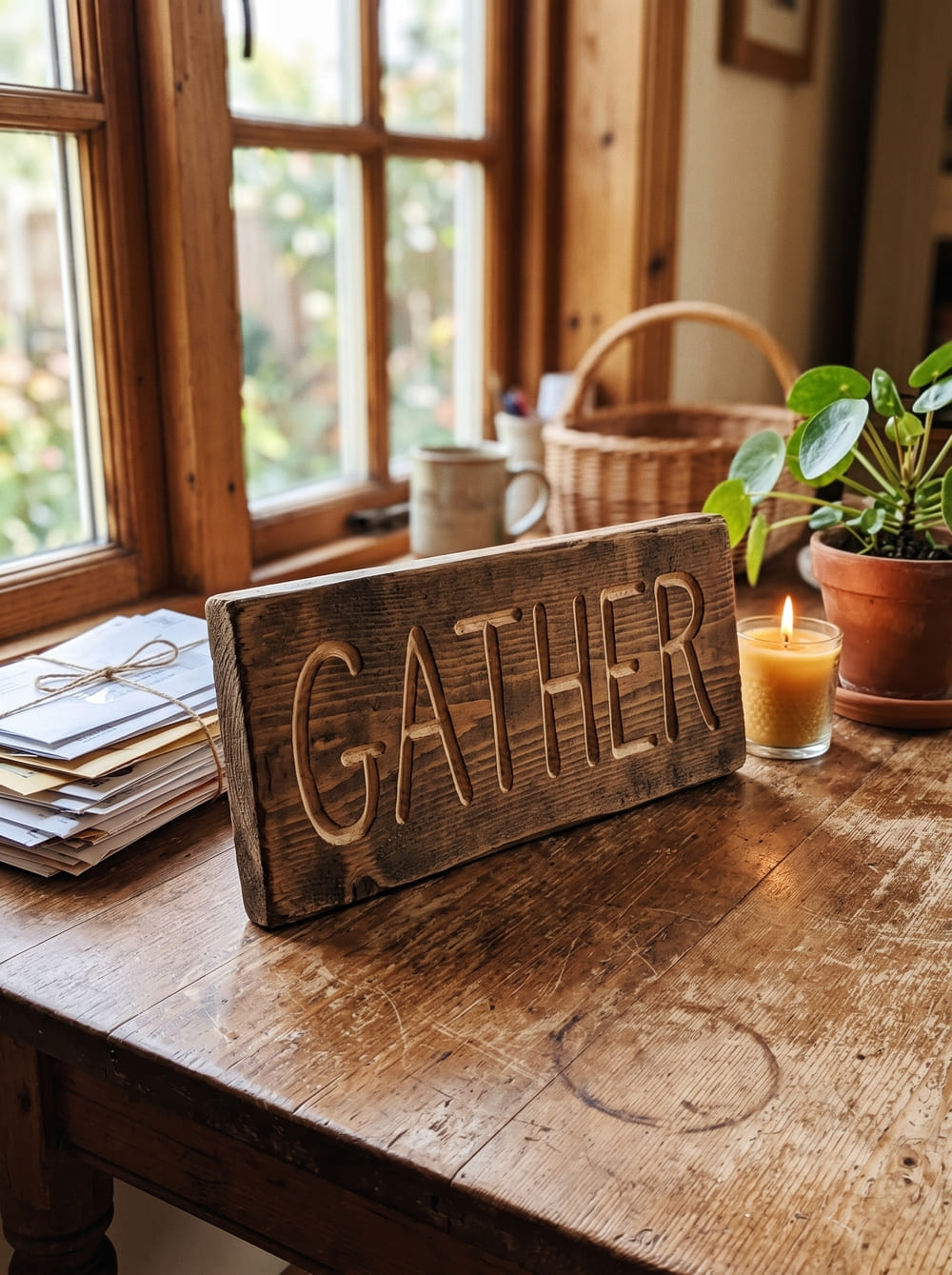
Step 1: the original. Warm wood sign, decent lighting, but the background is doing way too much: a candle, part of a plant, my own shadow creeping into frame.
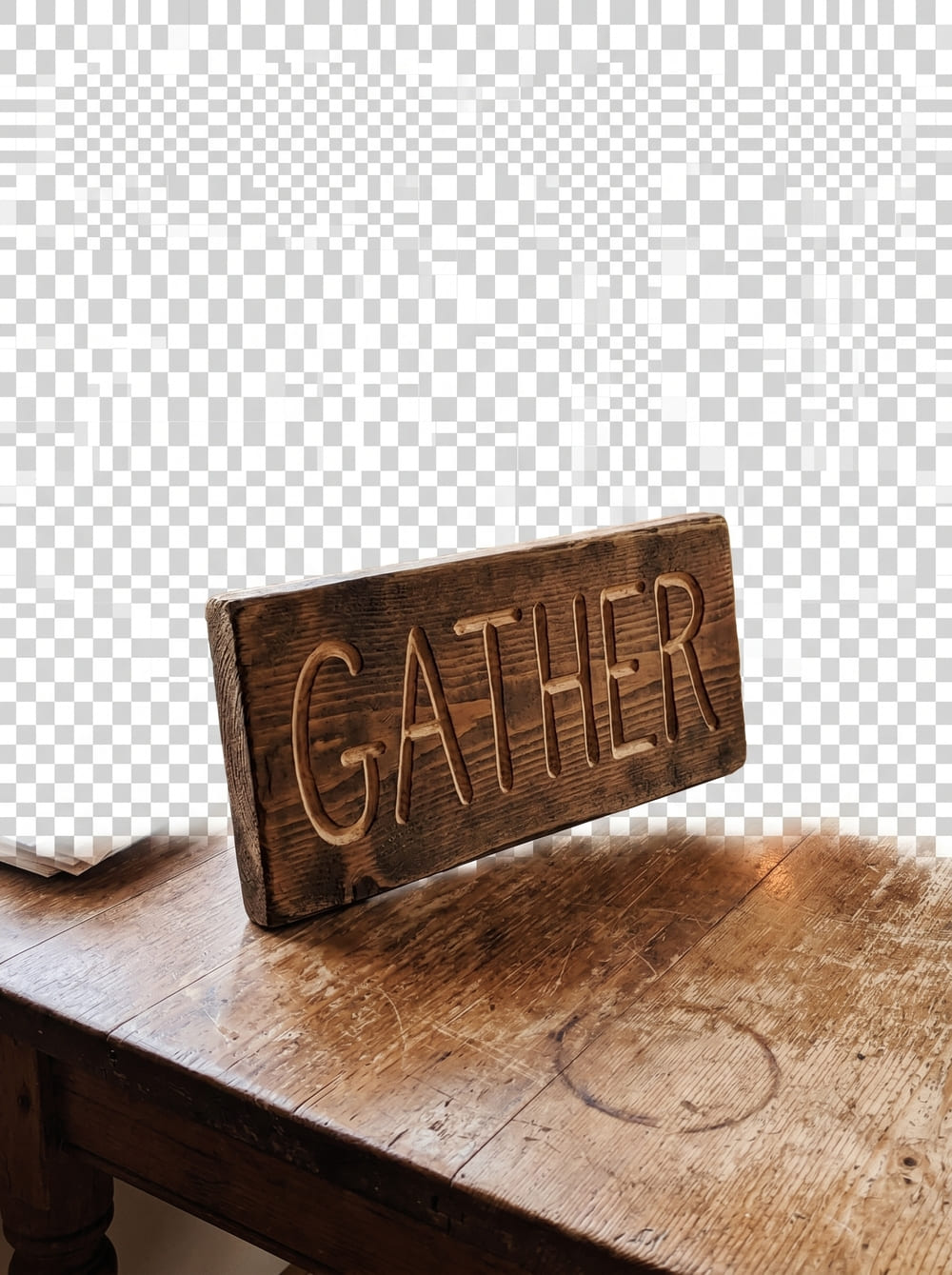
Step 2: background removal. I opened Creative Fabrica Studio Desktop and ran the local background remover on the photo. It pulled the sign out cleanly, including the trickier bits around the routed lettering, in a few seconds, with no upload progress bar and no “you have 2 free removals left this month” banner.
Step 3: upscaling. The original phone photo was fine for a phone screen, not fine for a large print or a zoomed-in Etsy gallery image. I ran it through the local AI upscaler to bump the resolution up before I used it anywhere print-related.
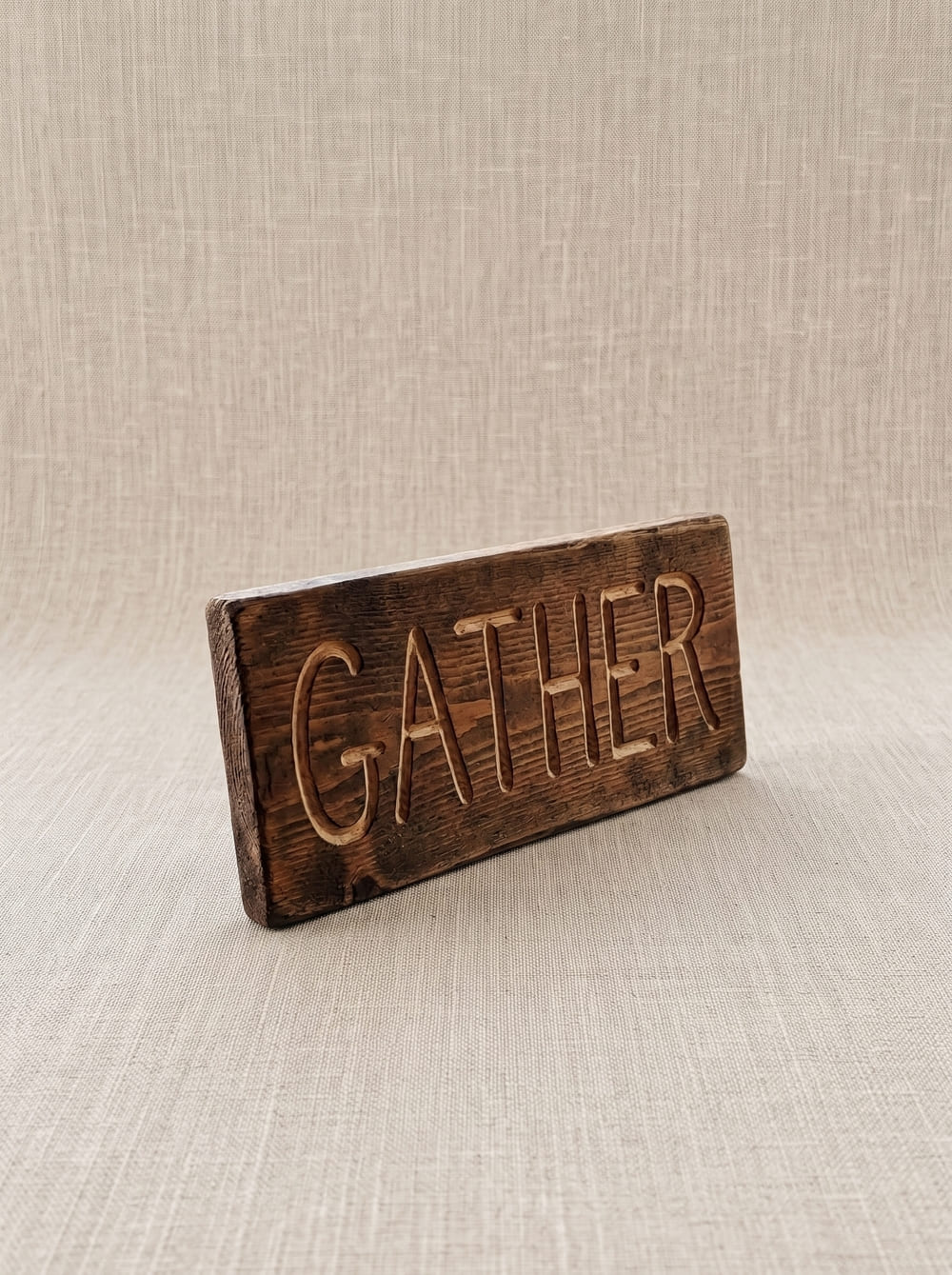
Step 4: new background. With a clean, transparent product cutout, I dropped it onto a simpler backdrop, a plain linen texture, so the sign is the only thing your eye lands on.
The whole thing took less time than it took me to write this paragraph. And this is the part that actually sold me: I never left my desktop to do it.
Who Is This Actually Good For?
Not everyone needs this. But if any of these sound like your Tuesday, it’s worth trying:
- Etsy sellers doing farmhouse decor, signs, or wreaths
- Printable and wall-art creators
- Print-on-demand sellers who need clean product mockups
- Anyone posting DIY/home projects who’s tired of distracting backgrounds
- Small shop owners who want professional-looking listing photos without hiring anyone
Pros and Honest Limitations
I’d rather tell you the whole picture than sell you half of it.
What worked well:
- It’s free to use for the local tools I tested
- Available for both Windows and Mac
- Background removal and upscaling both handled real, messy phone photos well
- Built right into the Creative Fabrica Studio workflow, so I wasn’t exporting and re-importing between apps
What to know going in:
- Performance depends on your computer. I didn’t test this on an older or lower-spec machine, so I can’t promise it’ll feel just as fast on one
- You’ll need to download the model for a tool the first time you use it, which takes a few minutes
- Some parts of the broader Studio experience still need an internet connection or a Creative Fabrica account, depending on what you’re doing. The local processing applies specifically to the supported local tools, not necessarily every feature in the app
I’d rather you know that upfront than discover it mid-project.
A Second Anchor Worth Trying: Upscaling Before You Print
If your main headache isn’t backgrounds but blurry, low-res images before print, the same app’s AI image upscaler for Windows is worth a separate try. It’s the tool I reached for on the sign photo above, and it’s the one I’d recommend first if print quality is your specific pain point.
FAQ
Is Creative Fabrica Studio Desktop free?
Yes, the local tools I tested (background remover and upscaler) are free to use once installed.
Does the background remover run locally?
Yes, after the model is installed, it processes images on your own computer rather than sending them to a server first.



Does it work on Windows?
Yes, it’s built for both Windows and Mac.
Does it work on Mac?
Yes.
Can I use it for Etsy product photos?
That’s exactly what I used it for in this post: cleaning up a phone photo into a listing-ready image.
Can I use it for print-on-demand designs?
Yes, the upscaler in particular is useful for getting phone-quality images up to print resolution.
Can I make transparent PNG files with it?
Yes, background removal outputs a transparent PNG you can layer onto any backdrop or mockup.
Is it an alternative to cloud-based background removers?
For the supported local tools, yes. The difference is that processing happens on your device instead of through an upload queue and credit system.
Do I need an internet connection to use it?
You’ll need one to download the app and the model the first time. After that, the local tools I tested didn’t require re-uploading images to work.
Are my images uploaded anywhere?
For the local background remover and upscaler, no. That’s the whole point of testing this app in the first place.
If you’ve got a stack of half-edited product photos sitting in a folder somewhere (I know I did), this is worth the ten minutes it takes to install and try on one image. Start with your messiest photo, not your best one. That’s the real test.
Never miss an update — choose FarmFoodFamily as your preferred source on Google.
How it works: Tap the button below to open Google's settings page, then check the box next to FarmFoodFamily.
Tap the checkbox to turn it blue — that's how you know it's set.